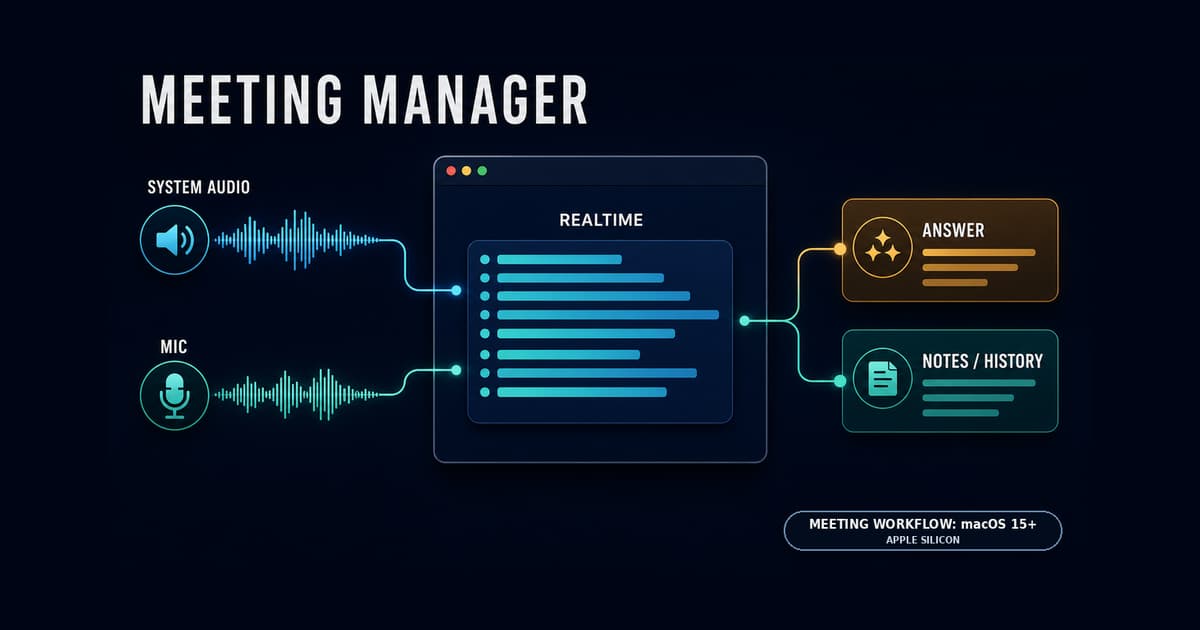
On macOS 15 or later, Meeting Manager captures meeting audio playing on the Mac and your microphone, produces a live transcript, answers detected questions, then saves meeting minutes and history when the meeting ends.
It is not tied to Google Meet, Zoom, or Microsoft Teams. It can work with browser and desktop meeting apps that play their audio through normal macOS routes.
The 0.1.0 download on this page is a public-distribution build signed with Developer ID, accepted by Apple's notarization service, and packaged after the notarization ticket was stapled to the app.
It is separate from the Apple Development-signed build used during development.
Apple silicon (arm64) only. This archive does not contain an Intel binary.
An OpenAI API key. Realtime transcription, answers, and summaries use the OpenAI API. API usage is billed to the user's OpenAI account.
Screen Recording permission. Meeting Manager uses ScreenCaptureKit to receive audio playing on the Mac.
Microphone permission on macOS 15 or later. On macOS 15, the app receives system audio and microphone audio as separate sources, aligns their timestamps, and sends the mixed stream.
On macOS 14, the app can be installed and launched, but the Start Meeting runtime in 0.1.0 requires macOS 15 or later.
Open Meeting Manager from Applications. Because this build is Developer ID signed and Apple-notarized, the normal launch path should work without using the right-click override.
Open API Keys in settings, enter your OpenAI API key, and save it.
Check Screen Recording and Microphone under Setup before use. Grant only the permissions macOS requests, then restart the app after changing a privacy permission.
Join a call first, then press Start Meeting in Meeting Manager. The app does not join a call on your behalf.
During transcription it can detect a question and prepare an answer. If you add reference documents, relevant passages become context for the answer.
When you stop, Meeting Manager drains queued audio and waits for the last utterance before creating minutes and saving history.
If the Realtime connection closes unexpectedly during a meeting, the runtime reconnects and retries the audio chunk that was not delivered.
Data sent to APIs
Meeting audio is sent to the OpenAI Realtime API for transcription.
Questions, answer context, relevant excerpts from reference documents, and transcript text used to prepare minutes may also be sent to OpenAI APIs.
When you use the optional screen-share assistant, screenshots of the main display are sent to the OpenAI API. It may send an updated screenshot at each action step. Hide confidential information on screen and use this feature only when you are allowed to transmit the display content.
For confidential meetings, check your organization's policy and the data controls of the OpenAI account, and use only audio, documents, and on-screen information that you are allowed to transmit.
The settings screen can save the API key in a local owner-only configuration file. Do not paste the key itself into screenshots, articles, or support messages.
Optional routes
Meeting Manager Camera is a Camera Extension that exposes processed avatar frames to a meeting app.
To use it, first press Start Virtual Camera. If macOS asks for approval, enable Meeting Manager Camera in System Settings > General > Login Items & Extensions > Camera Extensions. After approval, return to Meeting Manager and press Start Virtual Camera again. Then select Meeting Manager Camera in the call app. Restart only if macOS explicitly asks you to do so.
You do not need to approve the extension if you do not use the camera feature.
Listening to generated answers locally and sending generated speech back into a meeting are different audio routes.
To send answer audio to other participants, enable answer speech for the meeting, use Speech output for meeting in Meeting Manager to select BlackHole, Loopback, or another virtual audio device, and then select the same or paired device as the meeting app's microphone/input route.
Accessibility permission is required only for the optional screen-share control assistant. The final macOS or browser screen picker still requires a user choice.
What was verified for 0.1.0
On an Apple silicon Mac using the signed production bundle identifier, the verification covered separate system-audio and microphone arrival, Realtime transcription, Japanese question answering, grounded reference-document answers, final-utterance recovery during stop, Japanese minutes, history persistence, and history read-back.
It also covered automatic recovery from an unexpected Realtime disconnect with audio retry, plus writing frames to and reading frames back from the Camera Extension.
This does not guarantee every long-running meeting or every meeting application's UI. Version 0.1.0 is the first public build, so use a short test call before relying on it for an important meeting.
You can verify the downloaded archive locally:
bash
shasum -a 256 Meeting-Manager-0.1.0-macOS.zip
The result must equal 31217ab75cc82435088d6773438e033203353ee934e6f047ccd9e97ed09dbd65.