Herdr for Claude Code and Codex: A Practical Guide
# A primary-source introduction to Herdr for organizing Claude Code and Codex in workspaces, tabs, and panes, with installation, controls, and practical workflows.
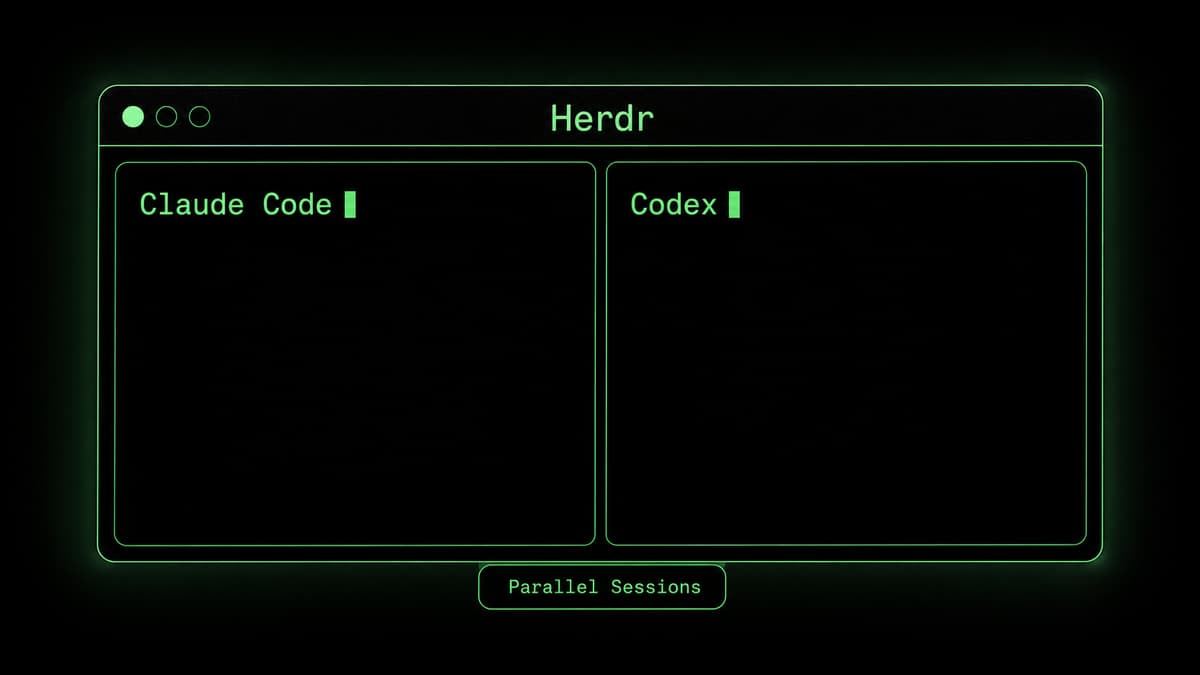
Herdr is an open-source terminal multiplexer built for AI coding agents. It lets you run tools such as Claude Code and Codex in separate panes while organizing projects into workspaces, tabs, and panes.
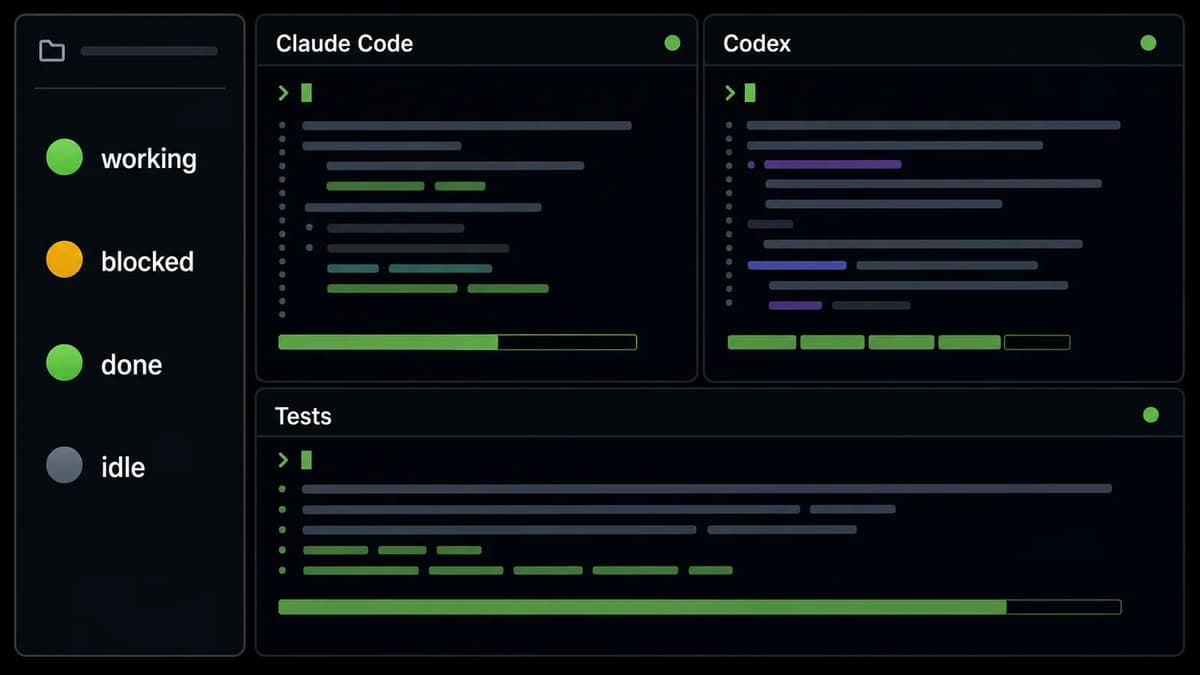
According to the official Quick start, Herdr detects agents automatically and shows each agent as working, blocked, done, or idle in the sidebar. That makes it easier to see which project needs attention without cycling through every terminal.
As of July 23, 2026, the latest official release is v0.7.5, published on July 21, 2026. This article follows the Stable documentation and the official GitHub repository.
Why it is useful
Separate projects into independent workspaces
Select, split, and resize panes with the mouse
Detect Claude Code, Codex, Pi, OpenCode, and other supported agents
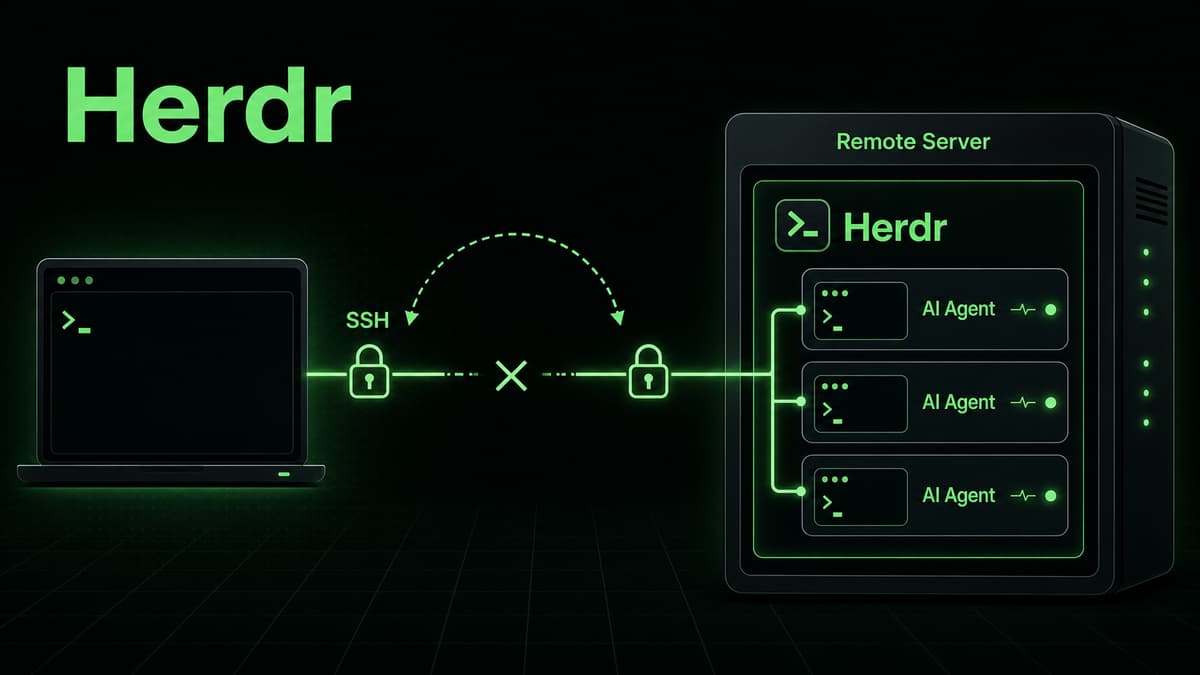
Keep agents running in a background server after the client detaches
Observe agent state across workspaces from one sidebar
Herdr does not provide an AI model or coding agent. Install and authenticate each agent CLI separately. Herdr is the workspace that helps you operate several of them without losing track of their state.
Install
The official install script is shown below. Open https://herdr.dev/install.sh and review it before execution when your environment requires that control.
bash
curl -fsSL https://herdr.dev/install.sh | sh
Nix users can run the verified Stable release directly:
bash
nix run github:ogulcancelik/herdr/v0.7.5
A Homebrew formula is also available:
bash
brew install herdr
Start your first workspace
Launch Herdr from a project directory:
bash
cd your-projectherdr
If the session has no workspace, Herdr creates one automatically. Start your normal agent inside a pane:
bash
claude# orcodex
Herdr is mouse-native: click panes and tabs, drag split borders, and right-click to split panes or create tabs. For keyboard control, press ctrl+b to enter prefix mode, then use an action key.
Action
Key
Split right
prefix+v
Split down
prefix+-
New tab
prefix+c
Next/previous tab
prefix+n / prefix+p
Workspace navigation
prefix+w
Detach
prefix+q
A practical workflow
Assign clear roles instead of letting multiple agents edit the same files. For example, use Claude Code for implementation in the left pane, Codex for tests or review in the right pane, and another tab for server logs. Check only the pane marked blocked when an agent needs input.
Simultaneous edits to the same file can still create conflicts. Separate branches, workspaces, or ownership boundaries remain important.
The main benefit is not merely running more agents. It is seeing the growing workload in one place and returning to the pane that needs you. Start with one project and two panes.
Getting Started with Herdr: Manage Claude Code and Codex in One Terminal
*Diagram: Claude Code, Codex, tests, and each agent state are monitored from one terminal workspace.*