Google Analytics 4 for Next.js: Consent, SPA Views, and Verification
# Create a GA4 property and web data stream, configure the Measurement ID, gate loading on consent, prevent duplicate SPA page views, and verify the result in DebugView.
The Measurement ID is saved, and the home page appears in Realtime.
That can look like a finished setup.
It is not enough: a Next.js site can miss every client-side navigation after the first load, or count each navigation twice when both Google and the application observe the same history change.
A reliable GA4 installation separates “the tag loaded” from “one correct page_view continues to arrive for each page.”
This guide creates a Google Analytics 4 property and web data stream, connects the stream to the current blog implementation, and verifies consent and single-page application navigation.
The implementation and the official Google documentation were checked on July 26, 2026.
Every identifier in the examples is a placeholder; no real Measurement ID, verification token, or account name is included.
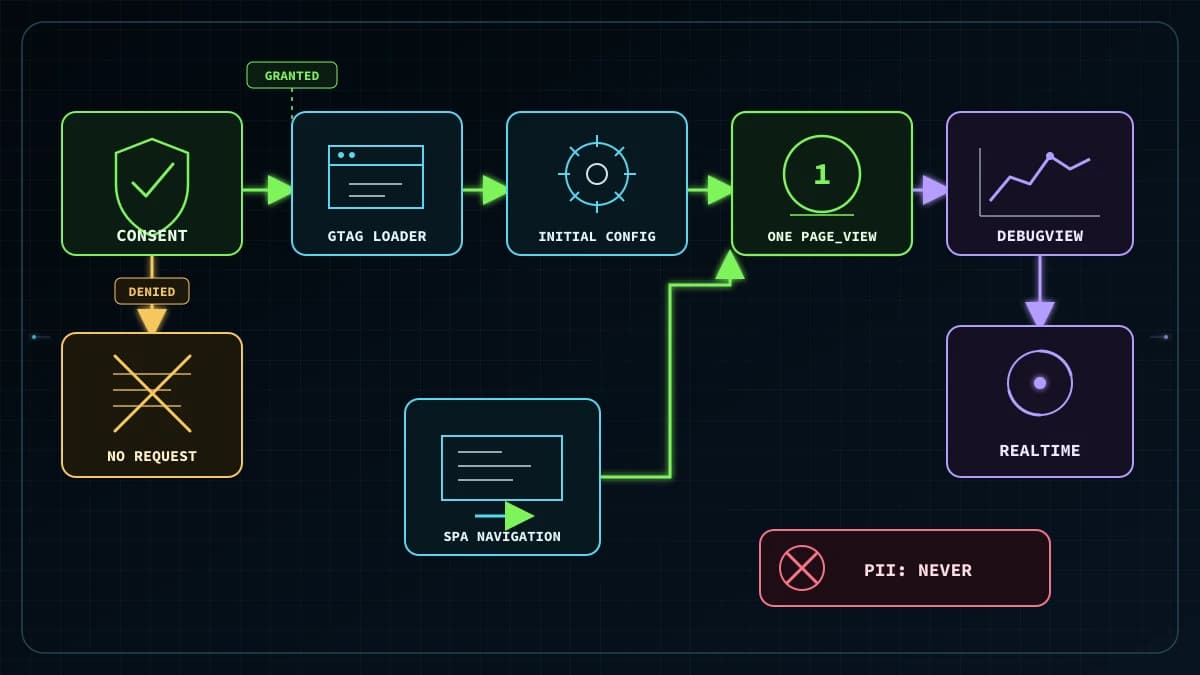
Flow from cookie consent through GA4 loading and SPA navigation to Realtime and DebugView verification
*Diagram: block the Google tag before consent, measure the initial load and client navigation through one owner, and compare the browser requests with GA4 diagnostics.*
Separate the property, data stream, and Measurement ID
The GA4 interface uses accounts, properties, and data streams for different jobs.
Treating them as interchangeable makes it easy to copy the wrong value into the blog.
A property contains the reporting destination, event configuration, and access controls.
A web data stream is the website-specific input to that property.
A Measurement ID identifies the web stream and begins with G-; this is the value the blog needs.
Create the destination in Google Analytics Admin:
Create an Analytics account if the organization does not already have an appropriate one.
Create a GA4 property for the site, choosing the reporting time zone and currency that match its operations.
In Admin, open Data Streams, choose Web, and register the canonical production HTTPS URL with a recognizable stream name.
Open Web stream details and copy the Measurement ID shown under Stream details.
Creating a property alone does not cause a website to send data.
Conversely, placing G-XXXXXXXXXX in code does not help if it points to a nonexistent stream or a different property.
Before copying the ID, confirm the selected property and stream URL in the Analytics interface, then transfer only the Measurement ID.
Save the Measurement ID in this blog
The current admin console has a “Google Analytics Measurement ID” field and an Analytics enable switch under marketing settings.
In production, saved marketing settings take precedence, while NEXT_PUBLIC_GA_MEASUREMENT_ID acts as a fallback when no saved value exists.
The normal operational path is therefore to enter an ID in the following format, enable Analytics, and save the settings.
text
G-XXXXXXXXXX
RootLayout reads the marketing settings for the request and passes an empty string to the GoogleAnalytics component when Analytics is disabled.
The component validates the G- format and does not load a tag for an empty or malformed value.
After saving, open the production URL in a fresh navigation and inspect the post-consent network request rather than treating rendered HTML as proof of collection.
An environment fallback also avoids committing a real value to the repository.
Set it in the deployment environment using the placeholder shape documented in .env.example, and keep the real value out of build logs and article screenshots.
A Measurement ID selects the Google tag destination, but there is no reason to reproduce the live value in a tutorial.
Current consent-gated loading behavior
The current GoogleAnalytics component subscribes with useSyncExternalStore to the marketing-consent choice saved in localStorage.
When consent is absent or denied, it adds neither the googletagmanager.com loader nor the inline configuration.
After acceptance, it adds one loader and one configuration element, updates analytics_storage to granted, and starts collection.
The sequence is:
Validate both the consent state and the Measurement ID.
Add the Google tag loader only after acceptance.
Set ad_storage and analytics_storage to denied as the consent defaults.
Update only analytics_storage to granted.
Run the js and config commands.
On withdrawal, update both storage values to denied and remove the scripts and analytics runtime from the current document.
A denial made in another tab is received through the storage event.
The consent store stops optional scripts that may still be loading and reloads the document after that cross-tab withdrawal.
This cleanup cannot recall events that reached Google before consent was withdrawn.
Stopping future transmission and managing previously collected data are separate responsibilities.
The cleanup also does not delete existing Analytics cookies, so cookie removal or data-deletion requirements need separate handling.
Do not describe this implementation as complete Consent Mode v2 support.
Google’s current consent mode includes ad_user_data and ad_personalization for advertising in addition to ad_storage and analytics_storage.
The component does not set the two advertising consent parameters, and it does not load the tag while consent is denied.
Its behavior is closer to Google’s basic consent mode pattern: consent-gated tag loading with partial consent signals.
It does not establish a complete v2 advertising implementation, regional defaults, CMP integration, or legal compliance.
Determine the required consent types and wording from the Google products in use, the regions served, and the organization’s policy.
Give SPA page views one owner
On an ordinary document load, gtag('config', ...) sends a page view by default.
A Next.js client navigation does not reload the HTML document, so a tag that observes only the initial load may never record the next URL.
Google’s SPA guide recommends triggering virtual page views from browser history changes or custom events, then checking each screen interaction and its referrer.
The current component makes the application responsible for SPA navigation.
It patches pushState and replaceState, subscribes to popstate, and calls gtag('config', measurementId, { page_path }) when pathname + search changes.
It discards a path equal to the last sent path and, if navigation occurs before window.gtag exists, retains only the latest pending path.
The initial path is left to the default page view from the first config command, so the component does not manually send that same initial view.
The component explicitly sets only page_path on a transition; it does not pass updated page_location and page_referrer values.
Use DebugView to determine whether the virtual referrer follows the prior screen. If it remains the original document referrer, refactor to explicit page_view events while retaining and sending the previous URL.
The GA4 web stream can independently enable “Page changes based on browser history events” under Enhanced measurement.
If that setting watches the same History API calls, a page view can come from the component and from Google’s automatic measurement.
An application listener, Enhanced measurement, and a Google Tag Manager History trigger must not be layered casually.
Choose one owner.
To keep the current component, open the Page views details in Enhanced measurement and disable “Page changes based on browser history events.”
Leave client navigation to the component and verify its output.
To move ownership to Google, first remove the component’s history listener, then enable Page loads and browser-history page changes in Enhanced measurement and retest the full route set.
If Google Tag Manager owns the transition, do not also enable GA4 automatic history tracking for the same transition.
A different design can send every page view through an explicit event command.
In that design, set send_page_view: false on the initial config command and send the initial URL through the same shared function as later URLs.
The current implementation does not use that design.
Copying only send_page_view: false from a generic example would remove its initial page view.
The current path includes the query string but excludes the hash.
An application that changes screens only through fragments would therefore need another signal.
Even with this blog’s History API routes, test locale changes, query-bearing URLs, Back, and Forward separately.
Keep PII out of URLs and event parameters
Google policy prohibits sending data that Google could use or recognize as personally identifiable information.
Email addresses, personal phone numbers, names, and contact-form bodies must not become Analytics event parameters.
A value does not become safe merely because it is hidden from the rendered page.
This implementation sends pathname + search as page_path.
The application must therefore keep email addresses, phone numbers, names, authentication tokens, and other personal data out of query parameters before GA4 is enabled.
Google Analytics offers data redaction for email-like text and selected query parameters, but Google describes it as best effort.
Redaction is a defense in depth measure, not a substitute for preventing the data from being sent.
Apply the same rule to custom events.
Limit values passed to trackEvent to necessary, low-cardinality dimensions such as locale, a button category, or a public post slug.
Do not send the full site-search query, a contact form body, chat input, or a free-form error message.
A code-level allowlist makes it harder for a later UI change to leak unrestricted input.
Trace one page view in production
Finding a tag element in local development does not test the production CSP, consent state, content blocker, or destination ID.
Follow the same action through the browser, DebugView, and Realtime.
Open the production URL in a fresh browser profile with no saved consent.
Before acceptance, confirm in the Network panel that there is no googletagmanager.com/gtag/js request and no Analytics collect request.
Accept, then confirm that exactly one loader appears and its request succeeds.
Enable debug mode with Google Tag Assistant or another documented method, and open DebugView in GA4 Admin.
Confirm the first page_view, then use client navigation to open a Japanese post, an English post, and a URL with a query string.
For each transition, require exactly one new page_view and verify that page_location and page_referrer update from the preceding screen.
Use browser Back and Forward and require one event for each resulting screen.
Withdraw consent and confirm that later navigation produces no new collect request.
Open Realtime and check activity in the last 5 and 30 minutes.
DebugView follows events from a device with debug mode enabled and is intended for installation troubleshooting.
It is not a replacement for normal reports.
Realtime also has limits on available dimensions and user-acquisition processing.
Google’s Data freshness documentation says report data can change during processing and that processing can take 24 to 48 hours.
If an event exists in Realtime but not in a standard report immediately, recheck after processing rather than declaring the installation broken.
Troubleshoot from the observed symptom
Symptom
Where to inspect
Common cause
No request after consent
Admin settings, Elements, Network
Analytics disabled, malformed ID, denied consent, CSP, or a content blocker
Only the first page is recorded
History API, DebugView
SPA listener not running, fragment-only routing, or a different router signal
Two events per navigation
DebugView timestamps and parameters
The component and Enhanced measurement, or GTM, both own the same history change
An old path arrives later
Network sequence and navigation order
A stale pre-loader queue or asynchronous code that does not recheck the current URL
No device in DebugView
Debug mode, consent, property
Debug mode is off, the ID targets another property, or the browser blocks the request
Realtime has data but reports do not
Realtime, Data freshness
Standard reports are still inside the 24 to 48 hour processing window
A URL exposes personal data
page_location, page_path, query parameters
The application placed unrestricted input or a token in the URL before redaction
When investigating duplication, do not start from an aggregate page-view total.
Put the Network requests and DebugView events for one click in chronological order.
Identical parameters suggest duplicate senders; different parameters point instead to a redirect or a second screen condition.
That evidence identifies the owner to remove without guessing.
Search Console clicks and GA4 sessions measure different points
The Search Console Performance report measures impressions, clicks, click-through rate, and average position in Google Search results.
GA4 measures page views, events, sessions, and user behavior after the site’s tag sends data.
A Search Console click and a GA4 session have different definitions and collection conditions, so they are not expected to match one for one.
This blog does not load GA4 before consent or while consent is denied.
Search Console can count a click even when the visitor declines analytics, blocks JavaScript, or leaves before the tag sends an event.
Date boundaries, attribution, and URL grouping can add further differences; a raw discrepancy is not by itself evidence of a broken implementation.
Linking a GA4 web data stream to a Search Console property adds organic-query and landing-page reports inside Analytics.
The link does not make Search Console metrics and Analytics metrics interchangeable.